
Gameplay Settings: Premoves, Press & Drop
What each ChessBit gameplay setting does (move sounds, premoves, Press & Drop and Show legal moves), how promotion works, and the board shortcuts.
Updated 2026-10-182 min readChessBit Support
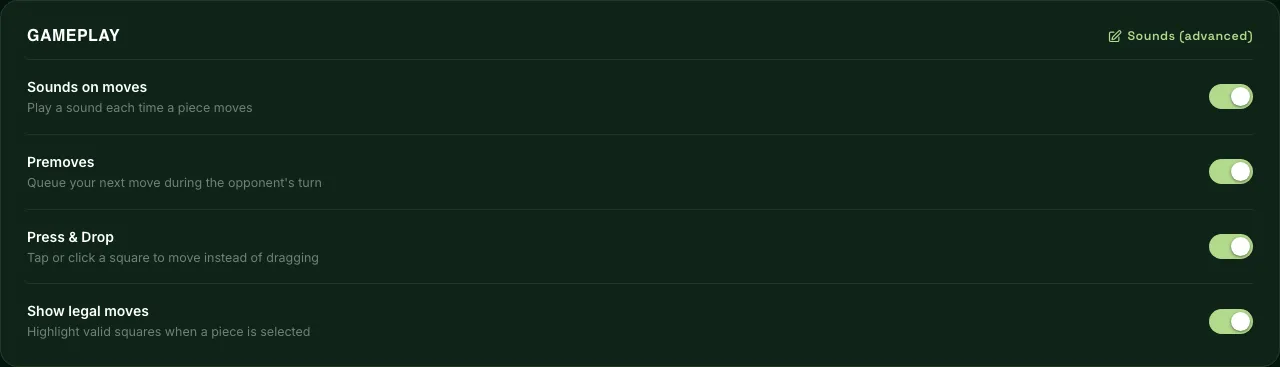
Open the profile menu (your avatar, top right) → Settings. The Gameplay card holds four switches. All of them are on by default, and changes save to your account immediately.
| Setting | What it does |
|---|---|
| Sounds on moves | Plays a sound for each move, capture and check, the low-time warning and the end of the game. Off means silent. To swap individual sounds, see Game sounds. |
| Premoves | Queue your next move during your opponent's turn; it's played the instant they move. Essential in Bullet. |
| Press & Drop | Tap or click a piece, then tap or click the destination square, instead of dragging. Dragging still works with it on. |
| Show legal moves | When you pick up a piece, the squares it can move to are highlighted. |
Premoves in Practice
- Make your move while it's your opponent's turn and it's queued (shown on the board). You can queue several in a row.
- When your opponent moves, your first premove is played straight away if it's still legal. If it isn't (say they captured the piece), all your queued premoves are cleared and you move normally.
- You can premove a recapture onto a square where your own piece still stands, by dragging or, with Press & Drop on, by tapping. It only plays if your opponent's capture makes it legal.
- Clear queued premoves with Esc or by right-clicking the board.
- A premove that promotes a pawn always promotes to a queen.
Promotion
When you move a pawn to the last rank normally, a dialog asks which piece you want: queen, rook, bishop or knight. (Only premoved promotions become a queen automatically.)
Board and Display
- The board colours and piece set are fixed; there are no alternative themes.
- The board is always shown from your side.
- ChessBit is in English.
- Balances can be shown in another currency. Change Display currency under Profile (USD, EUR, BRL, INR, MXN, PHP, TRY and more).
Privacy and Notifications
The same Settings page has your privacy controls, notification switches, two-factor authentication, Download my data and Close Account (see Closing your account).
Your answer tells us which articles to rewrite first.
Next in Settings & Customization
SettingsHow to Change or Turn Off Game SoundsMute ChessBit's move sounds, or replace any game sound (moves, captures, castling, check, game end and more) with your own MP3, OGG or WAV file. Step by step.SettingsPrivacy & Notification SettingsControl who sees your stats, who can challenge, message or follow you, whether you appear on leaderboards, and which notifications and emails ChessBit sends you.